Start with the product that fits your business. These written walkthroughs explain the main steps, what to bring to a demo and which details to confirm before purchase.
Example screens show existing demonstration data and may differ from your current theme or enabled modules. They are not current price lists, tax-rate advice or evidence of authority approval.
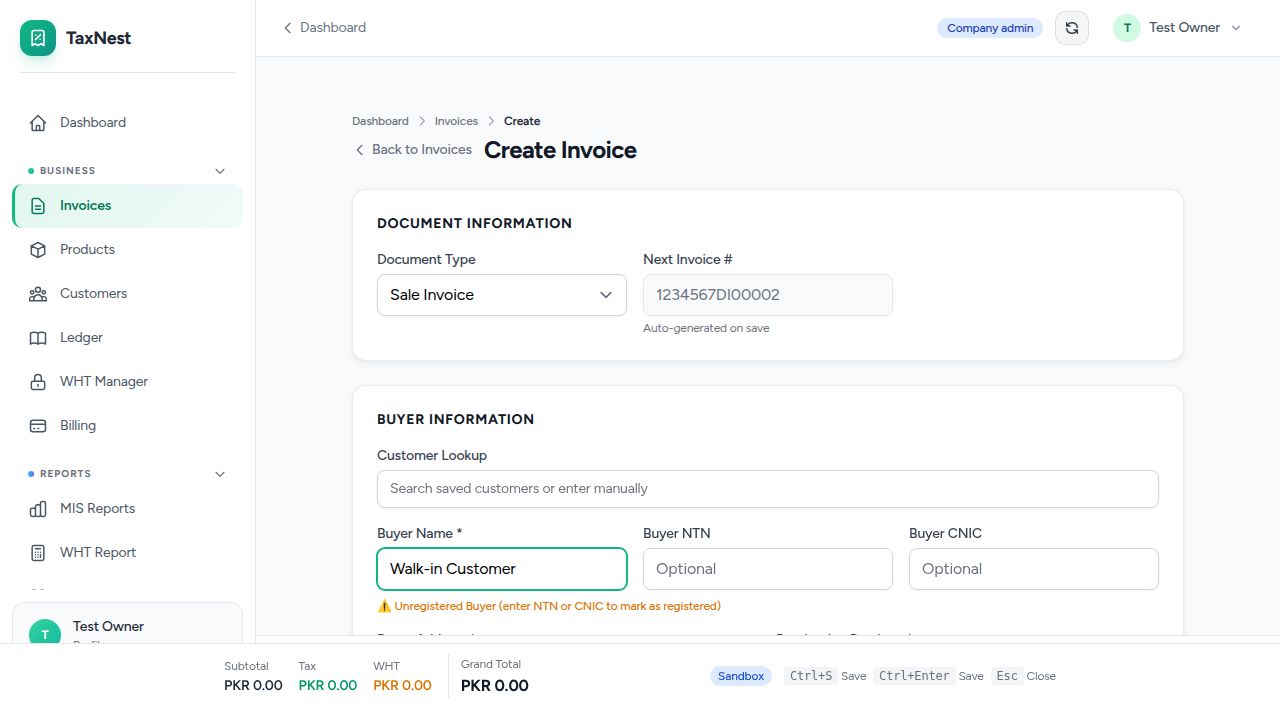
Digital Invoice
Businesses preparing FBR digital invoices, including batch imports and consultant-managed companies.
A typical workflow
Prepare buyer and product records, then create a draft or import rows using the template inside your account.
Review identifiers, quantities, HS classification, rates and validation errors. AI suggestions need your confirmation.
Test the workflow in Sandbox. Submit approved invoices using your configured production credentials and check the actual authority response.
Review invoice status, download PDFs and reconcile sales, tax and payments.
Make your demo useful
Bring a small sample of your own invoice format with customer details removed. Ask us to demonstrate import mapping, a rejected row, its correction and the final PDF.
Package and setup scope
AI usage is subject to the selected package allowance. White-label PDFs and API access depend on the package. Recurring automatic invoicing is not currently offered.
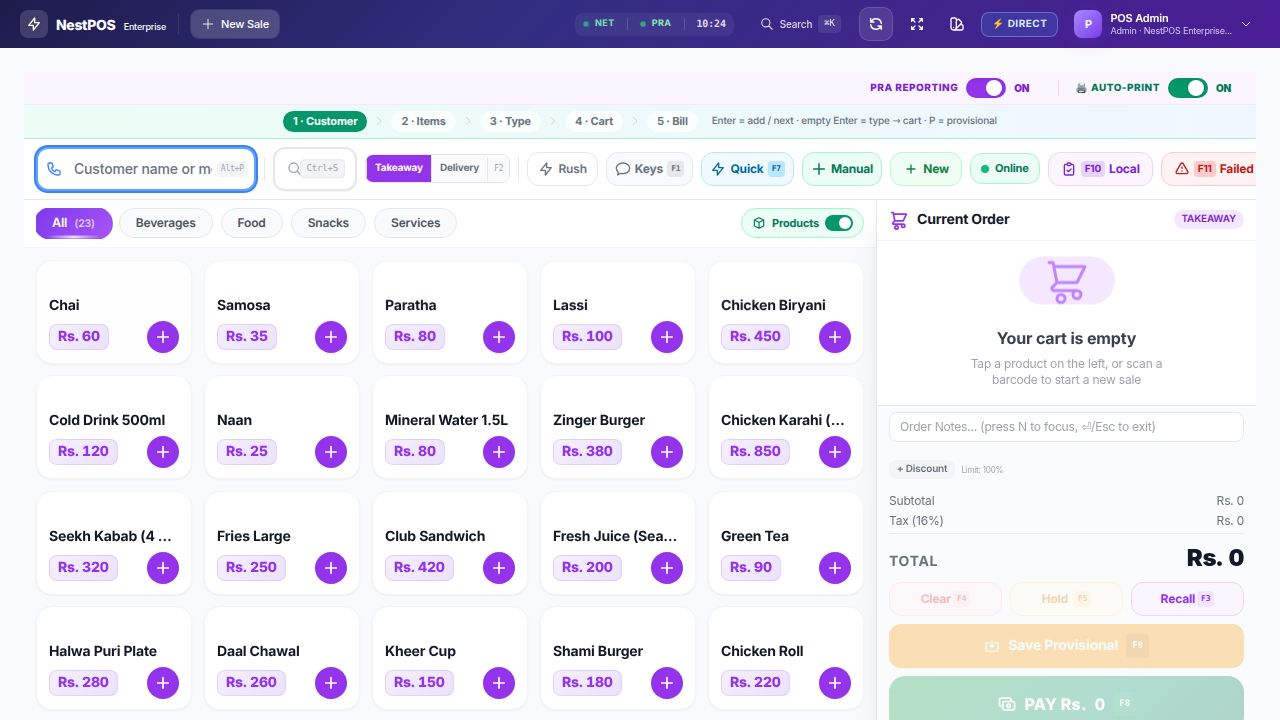
Restaurant and service businesses using the PRA product, with screens determined by business type, enabled settings and package.
A typical workflow
Choose your business type and package; set up services or menu items, tax settings and permitted staff roles.
Build a bill using customer lookup, products or deals. For restaurant workflows, choose dine-in, takeaway or delivery where enabled.
Use the available kitchen/table workflow, take payment and check the saved receipt and reporting status.
Reconcile cash, card receipts, customer balances and rider settlements in the relevant reports.
Make your demo useful
Tell us your counter count, printer connections, paper size and kitchen workflow. Ask for a sample bill, kitchen ticket, preview and day-close demonstration.
Package and setup scope
Hotel businesses can use room/stay and guest-folio workflows. Salon and workshop/service profiles provide relevant service workflows; they do not imply a separate complete ERP. Confirm your exact workflow in a demo. See the live package table for each entitlement.
Goods retailers needing the FBR POS product, inventory, counter billing and associated reporting.
A typical workflow
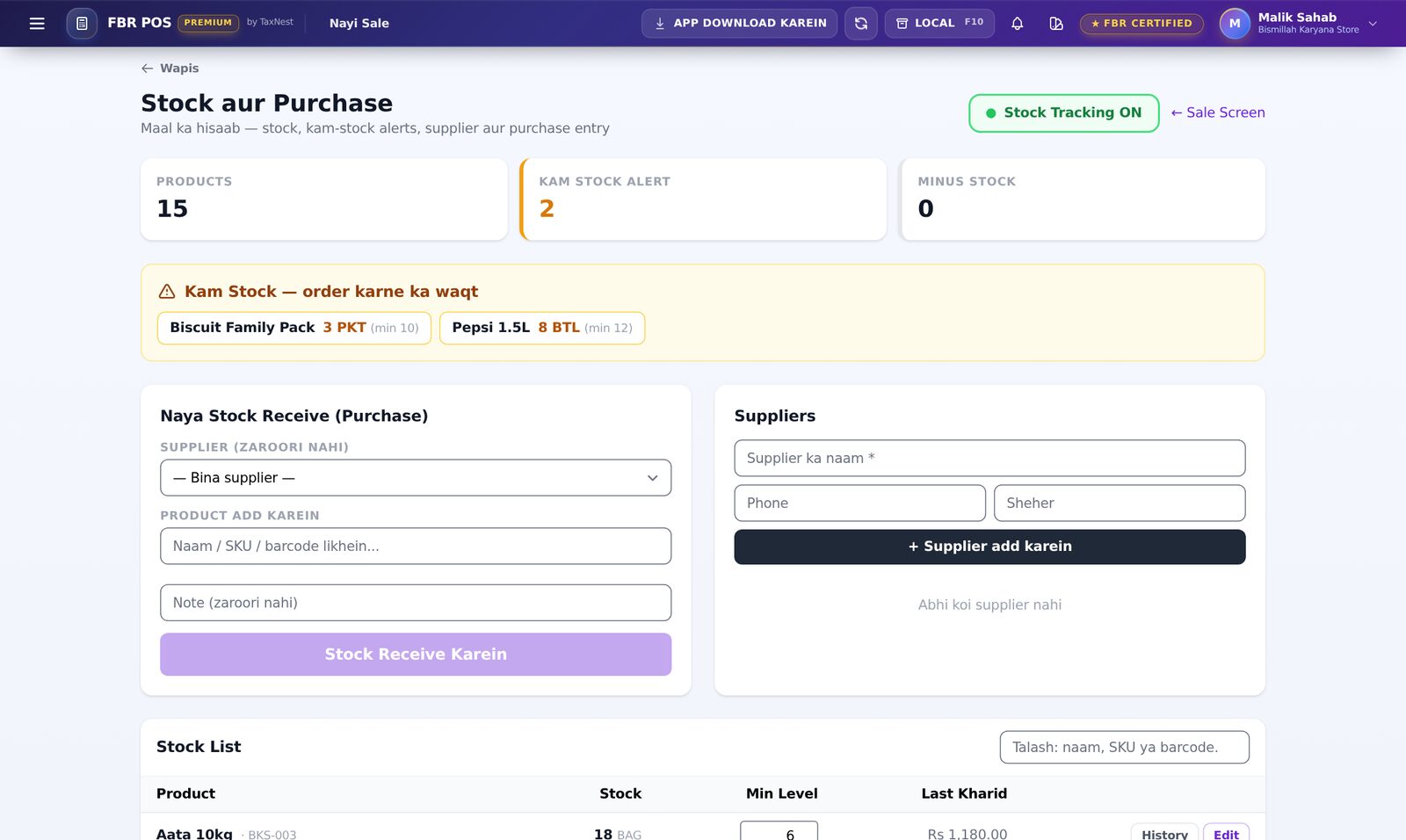
Set up products, tax treatment, barcode or SKU and opening stock; configure the required integration and printers.
Build the customer bill, take payment and check the receipt and actual FBR response.
Review failed or queued submissions and resolve the specific error before retrying.
Use stock/purchase, transaction and sales reports; use returns or credit-note workflows against the original sale where supported.
Make your demo useful
Bring an anonymised product list and the printer models you use. Ask us to show stock receipt, a sale, a return and how the authority response is tracked.
Package and setup scope
Pharmacy and kitchen-ticket features depend on the selected package. Do not assume the PRA table board, kitchen display or public QR menu is included in FBR POS; confirm any required restaurant workflow before purchase.
Example FBR stock screen showing low-stock alerts, purchase entry and supplier fields. Illustrative interface; check the current package table for permissions and prices.Explore FBR POSCheck current packagesRequest a demo
Nest ERPS — Healthcare
Clinics, hospitals, laboratories and healthcare pharmacies. Other ERP verticals are enquiries for custom work.
A typical workflow
Agree organisation type, branches, departments, staff roles and the modules required for your organisation.
Use patient registration and appointments or OPD; enable clinical, lab, pharmacy or admission workflows as required.
Record services, prescriptions, results or admissions within the enabled modules and authorised user scope.
Reconcile billing and accounts reports. Agree your migration, training and acceptance checks before moving existing records.
Make your demo useful
Request a guided demonstration with fictional patient data. Specify departments, user roles, daily patient volume and any existing data that needs migration.
Package and setup scope
Healthcare modules are available according to company configuration and package. Registration availability is controlled separately. A school, factory or other custom ERP requires an agreed scope and delivery estimate; it is not an instant activation.
For Healthcare, request a guided demo using fictional records so you can review the relevant modules without exposing patient information.
Share a small anonymised sample first. Agree the supported columns, duplicate handling, opening stock or customer balances and how totals will be reconciled. Do not assume every file or historical record can be imported automatically. Confirm any migration charges with support.
Training, devices and printers
Specify your roles, counters, branches, printer models and network arrangement. Ask for a demonstration of your required receipt, kitchen ticket and recovery workflow. Agree who will receive training and what is included before purchase.
WhatsApp, Caller ID and rider tracking
Check package eligibility, any add-on cost and the currently published app on Downloads. Manual WhatsApp bill sharing and automatic delivery are separate capabilities. Confirm auto-send availability and setup with support. Caller ID depends on phone permissions; rider maps depend on location permission, connectivity and the age of the last update.
Human support and tutorials
Published Urdu videos are available in the video library; this guide supplies written starting steps for all four product lines. Use Contact for current human support hours and demo arrangements. An in-panel AI assistant does not imply 24-hour human staffing. Agree any after-hours support separately.